
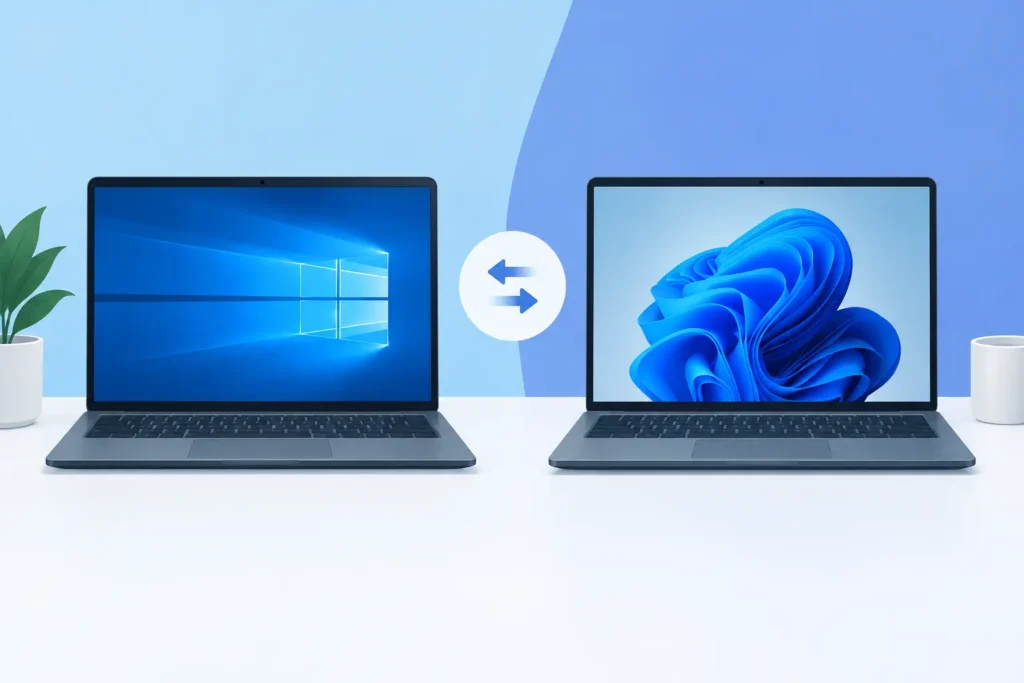
Difference Between Windows 10 and Windows 11
A Windows upgrade is not just a new Start menu. It can affect whether your PC remains supported, which security features it can use, and how easily it fits into your workday. The difference between Windows 10 and Windows 11 is most noticeable in design and hardware requirements, but the bigger decision in 2026 is support: Windows 10 reached end of support on October 14, 2025.
For many home users and small businesses, Windows 11 is now the sensible choice for a new computer or a fresh license. Still, Windows 10 and Windows 11 share a familiar foundation, and not every older PC can make the move. Here is what changes, what stays familiar, and how to choose with confidence.
Difference Between Windows 10 and Windows 11 at a Glance
Windows 10 was built to work across a wide range of PCs, including older hardware. Windows 11 builds on that experience with a cleaner interface, stronger default security requirements, and more tools designed around modern hybrid work. Both run many of the same desktop applications, support Microsoft Office, and offer familiar essentials such as File Explorer, Settings, Microsoft Defender, virtual desktops, and built-in accessibility features.
The practical differences are clear. Windows 11 has a centered taskbar and redesigned Start menu, improved window layouts, deeper collaboration features, and stricter processor and security requirements. Windows 10 has a more traditional layout and broader compatibility with older devices, but it no longer receives regular security updates through standard support.
That last point matters most. A computer can continue to run Windows 10 after support ends, but newly discovered security vulnerabilities are no longer routinely patched. For a PC used for online banking, business documents, customer data, remote work, or email, that is a risk worth taking seriously.
A New Look That Changes Everyday Use
Windows 11 is immediately recognizable by its centered Start button and taskbar icons. The Start menu is simpler than Windows 10’s tile-based layout, showing pinned apps, recommended files, and a clear path to your full app list. If you prefer the familiar left-aligned taskbar, you can move it in Settings.
The visual update goes beyond appearance. Windows 11 uses rounded corners, cleaner menus, refreshed system sounds, and more consistent controls throughout Settings and File Explorer. The goal is less clutter, especially on laptops and smaller displays.
Windows 10 feels more familiar if you have used Windows PCs for years. Its Start menu combines an app list with Live Tiles, which can show changing information such as weather or calendar updates. Some users still prefer that arrangement because it puts more shortcuts and information on screen at once. Neither approach is automatically better. Windows 11 favors a calmer, more focused workspace, while Windows 10 gives you a denser, more traditional desktop experience.
Multitasking Is Better in Windows 11
For remote workers, students, and professionals who keep several applications open, Windows 11 offers more useful improvements. Snap Layouts lets you hover over the maximize button and choose a layout for two, three, or four windows. You can place a browser, spreadsheet, email client, and document side by side without manually resizing each one.
Snap Groups remembers those layouts. If you switch to another app or connect and disconnect an external monitor, you can return to a group of working windows more quickly. Windows 11 also handles multiple displays more thoughtfully, including remembering window locations when you reconnect a monitor.
Windows 10 includes Snap Assist and virtual desktops, so it is not weak at multitasking. It just requires more manual arranging. For a single-screen home PC, that difference may be minor. For a business user working with reports, browser-based systems, video meetings, and Office apps, Windows 11 can save real time each week.
Hardware Requirements Are the Biggest Upgrade Barrier
The most important technical difference between Windows 10 and Windows 11 is eligibility. Windows 11 requires a compatible 64-bit processor, at least 4 GB of RAM, 64 GB of storage, UEFI firmware with Secure Boot capability, and TPM 2.0.
TPM, or Trusted Platform Module, is a security component that helps protect encryption keys, sign-in information, and sensitive system data. Many PCs made in the last several years include it, although it may need to be enabled in the computer’s firmware settings. Older machines may not have supported hardware at all, even if they still run Windows 10 well.
This does not mean every Windows 10 computer must be replaced immediately. A device used offline or for a specific legacy purpose may have different needs. But for a primary internet-connected computer, forcing Windows 11 onto unsupported hardware is not a sound long-term plan. You may lose access to reliable updates, face driver problems, and create avoidable support issues.
Before buying a Windows 11 license, check your PC’s processor, TPM 2.0 status, Secure Boot capability, available storage, and edition requirements. A genuine license activates Windows, but it cannot make incompatible hardware meet Windows 11’s system requirements.
Security Is More Central in Windows 11
Both operating systems include useful protections such as Microsoft Defender Antivirus, firewall controls, device encryption options, and Windows Hello sign-in on compatible devices. Windows 11 goes further by making modern security hardware part of its baseline requirements.
Secure Boot helps prevent unauthorized software from loading during startup. TPM 2.0 supports stronger protection for credentials and encryption. Windows 11 also places greater emphasis on virtualization-based security features where compatible hardware supports them. These protections are particularly valuable for laptops that travel, remote employees, and organizations managing customer or financial information.
Windows 10’s security was strong during its supported life, but support status changes the picture. Security tools cannot fully compensate for an operating system that no longer receives standard monthly fixes. For businesses, staying on an unsupported desktop operating system can also complicate internal security policies, cyber insurance expectations, and compliance planning.
Performance, Gaming, and Battery Life
On compatible modern hardware, Windows 11 is designed to prioritize foreground apps and improve efficiency for current processors. Many users will not see a dramatic speed increase in basic tasks such as browsing, email, or document editing. The difference is usually smoother workflow rather than a miraculous performance boost.
Windows 11 has stronger appeal for PC gamers. Features such as Auto HDR and DirectStorage can improve visual quality and loading behavior in supported games and hardware configurations. Those benefits are conditional, not guaranteed for every game or PC, so gaming alone may not justify an upgrade from a well-running Windows 10 machine.
Laptop battery life also depends far more on the device, display brightness, power settings, browser use, and background applications than on the operating system version alone. Windows 11 includes refined power management controls, but expectations should remain practical.
Windows 11 Home or Pro: Choose the Right Edition
The edition matters as much as the operating system version. Windows 11 Home is usually the right fit for personal computers, students, and many independent professionals. It provides the familiar Windows experience, security tools, and access to everyday applications.
Windows 11 Pro is designed for users who need more control. It adds business-focused features such as BitLocker device encryption management, Remote Desktop host capability, domain or work-account connectivity options, and policy tools. Small businesses, consultants, and IT administrators often benefit from those capabilities, especially when managing multiple PCs.
Buying Pro does not make a computer faster by itself. It is worthwhile when you need its administrative, encryption, or remote-access features. If you are unsure, start with how the PC will be used rather than choosing an edition based on the word “Pro.” LicenseCraft can help buyers match a genuine Windows license to their device and work requirements before purchase.
Should You Move From Windows 10 to Windows 11?
If your current PC is compatible and used online, moving to Windows 11 is the practical route. You receive a supported operating system, current security updates, and a platform Microsoft is actively improving. Back up important files first, confirm that critical printers or specialized software have Windows 11 support, and make sure you know which edition you need.
If your PC is not compatible, weigh the cost of replacement against the risk of keeping an unsupported operating system. A newer PC with Windows 11 may offer a better result than trying to extend the life of a machine that is already short on storage, memory, or battery capacity.
The right choice is not about chasing a new interface. It is about using a supported, properly licensed system that fits your hardware and the work you need to do. Check compatibility first, choose the edition with the features you will actually use, and keep your activation details somewhere safe.