
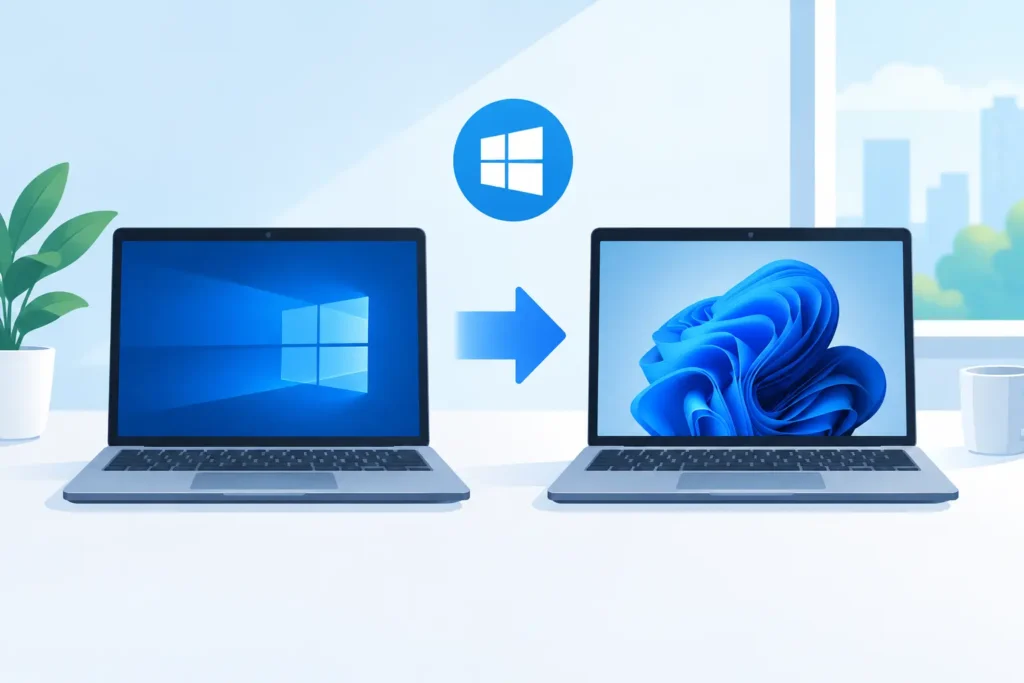
Is Windows 11 Free for Windows 10 Users?
A Windows 10 computer can often move to Windows 11 without paying Microsoft another upgrade fee. But the answer to “is Windows 11 free for Windows 10 users” is not simply yes for every PC. Your current Windows license must be genuine and activated, your device must meet Windows 11 hardware requirements, and the edition you upgrade to matters.
For many home users and businesses, the upgrade is straightforward. For older computers, changed hardware, or devices that need Windows 11 Pro, buying the right license may still be the cleanest and most reliable path.
Is Windows 11 Free for Windows 10 Users?
Windows 11 is generally available as a free upgrade for eligible PCs running a properly activated copy of Windows 10. If your device qualifies, Windows Update may offer the upgrade directly. You keep the equivalent edition: Windows 10 Home upgrades to Windows 11 Home, while Windows 10 Pro upgrades to Windows 11 Pro.
The key word is eligible. A free upgrade does not mean every computer capable of running Windows 10 can run Windows 11. Microsoft introduced stricter baseline hardware requirements for Windows 11, largely centered on security features built into newer hardware.
If the upgrade is offered through Windows Update, you normally do not need to enter a new product key. Once activated, Windows 11 receives a digital license tied to the device and its hardware configuration. That is why many users see activation happen automatically after the upgrade and internet connection are complete.
Windows 10 reached the end of support on October 14, 2025. A PC can still turn on and run Windows 10, but it no longer receives regular security updates from Microsoft. For an eligible computer, moving to Windows 11 is a practical way to continue receiving supported operating system updates without replacing a valid license unnecessarily.
What Your PC Needs Before You Upgrade
The most common reason a free Windows 11 upgrade is unavailable is hardware compatibility. Windows 11 requires a supported 64-bit processor, at least 4 GB of RAM, 64 GB of storage, UEFI firmware with Secure Boot capability, and TPM version 2.0.
TPM, short for Trusted Platform Module, is a security component that helps protect credentials, encryption keys, and system integrity. Some PCs have TPM 2.0 but have it disabled in the BIOS or UEFI settings. In that case, the device may become eligible after the setting is enabled. If the processor itself is not supported, however, changing a setting will not solve the issue.
Use the PC Health Check app or Windows Update to check compatibility before making plans. This saves time and gives you a clear reason if the device cannot upgrade. Business buyers should check a representative sample of machines first, especially when purchasing licenses or planning a company-wide rollout.
Hardware requirements are not just a technical inconvenience. Installing Windows 11 on unsupported hardware can create avoidable problems, including uncertain update availability and a less predictable support experience. For a computer used for work, school, financial accounts, or customer data, a supported configuration is the sensible choice.
Your Existing License Must Be Activated
A Windows 10 installation is not automatically eligible just because it is installed on the computer. It should be activated with a valid license first. You can check this in Settings under System and Activation. Windows should show that it is activated, preferably with a digital license.
If Windows 10 is not activated, the free upgrade route does not turn it into a licensed Windows 11 installation. You need a legitimate Windows license for the edition you want to use. This is especially relevant for secondhand computers, machines rebuilt by an IT department, and PCs that arrived with an unlicensed or improperly activated copy of Windows.
Be cautious with keys that seem impossibly cheap or come with no proof of origin, activation guidance, or support. A key can appear to work initially and still create a problem later if it was not intended for retail resale or was obtained improperly. Genuine, legally compliant licensing protects more than the activation screen. It gives you a dependable foundation for updates, reinstallation, and future support.
Home and Pro Are Not the Same Upgrade
The free upgrade follows your current Windows edition. That means a Windows 10 Home license does not become Windows 11 Pro simply because the PC supports Windows 11.
Windows 11 Home is a good fit for many personal computers, students, and everyday remote work. Windows 11 Pro is usually the better choice when you need business-focused features such as BitLocker device encryption management, Remote Desktop host capability, Hyper-V virtualization, Group Policy, or joining a work domain.
If you have Windows 10 Home and now need Pro features, you will need a Windows 11 Pro upgrade or a valid Pro product key. The same is true if you are setting up a new device with no qualifying Windows 10 license. Buying the correct edition from the start is simpler than discovering a missing feature after deployment.
For organizations, edition consistency matters. A mix of Home and Pro installations can make device management more difficult and can limit access to tools your team expects to use. Review your requirements before purchasing several licenses, particularly if staff need encryption controls, remote administration, or centralized policies.
When You May Need to Buy Windows 11
A new Windows 11 license is typically needed when there is no activated qualifying Windows 10 license, when you want to move from Home to Pro, or when you are installing Windows on a newly built or replacement PC.
You may also need a license after major hardware changes. Windows digital licenses are commonly associated with the device, and replacing a motherboard can cause activation to require extra steps. Retail licenses generally offer more flexibility for transfer to another device than OEM licenses, but license terms still matter. Do not assume that every product key can legally move from one computer to another.
A clean installation can be another reason to confirm your license position. If the same eligible PC already has a digital license for the correct edition, reinstalling Windows 11 often activates automatically once online. If you are changing editions or installing on different hardware, have the appropriate product key ready before you begin.
For a business deployment, the cheapest route is not always the best value. A clearly sourced license, documented purchase record, correct edition, and access to real activation support can prevent downtime that costs far more than the license itself.
How to Upgrade Safely
Back up important files before any operating system upgrade. Windows upgrades usually preserve documents and applications, but a backup protects you from unexpected interruptions, storage failures, and configuration issues.
Next, install current Windows 10 updates and check activation status. Run the compatibility check, make sure you have sufficient free storage, and disconnect nonessential external devices if they have caused update issues in the past. Then use Windows Update if the Windows 11 upgrade is offered for your PC.
After installation, confirm activation in Windows 11 Settings. Check that your files are present, your essential programs open correctly, and your printer, audio, webcam, or specialized business hardware works as expected. If you use BitLocker or device encryption, verify that recovery information is stored safely before making future hardware or firmware changes.
A Better Decision Than Forcing an Upgrade
If your computer is eligible, activated, and running the edition you need, Windows 11 can be a free and worthwhile upgrade from Windows 10. If it is not eligible, forcing an unsupported installation is rarely the answer.
A properly licensed Windows 11 edition on compatible hardware gives you a cleaner setup, current security support, and fewer activation questions later. Whether you are upgrading one home PC or preparing multiple business devices, choose the license and hardware path that lets you install, activate, and get back to work with confidence.